

How SSO Works with Contentstack
When you enable single sign-on (SSO) for your organization, your identity provider (IdP) handles authentication. A user who signs in to Contentstack through SSO is redirected to your IdP to authenticate, and then returned to Contentstack.
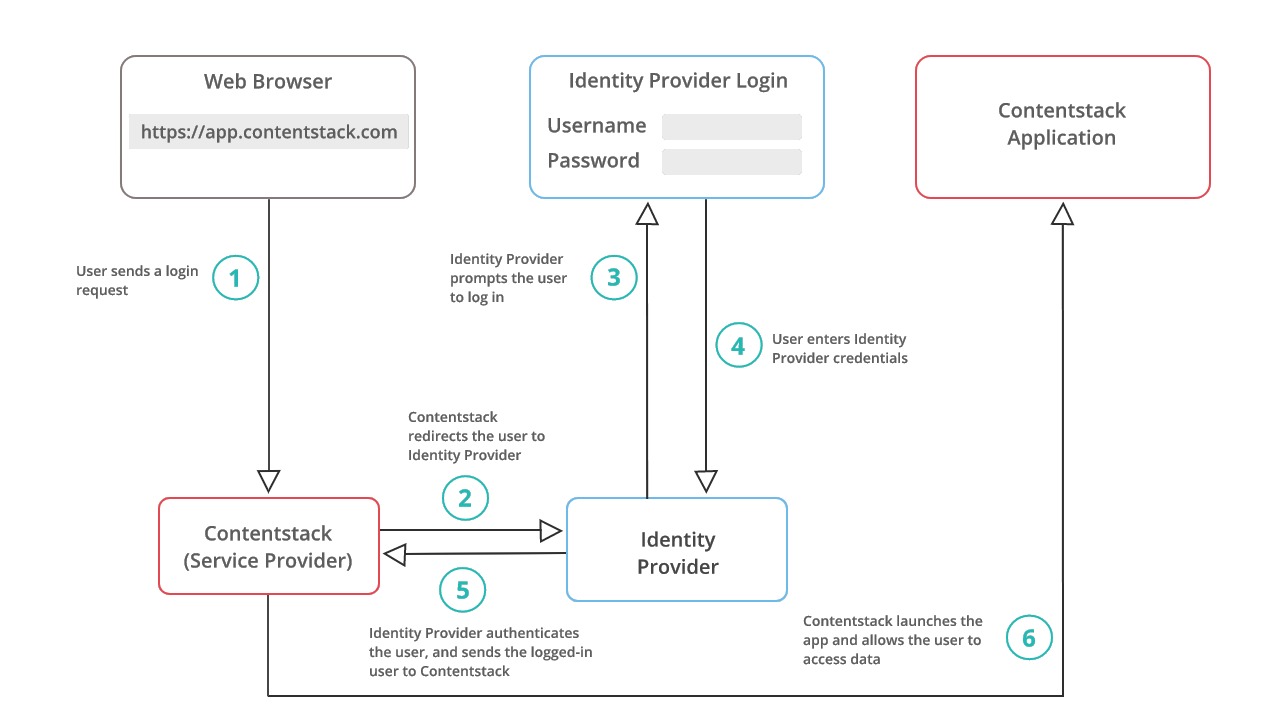
The Sign-In Flow
The experience depends on whether the user already has an active IdP session:
- Not signed in to the IdP: Contentstack redirects the user to the IdP sign-in page. After the user authenticates, the IdP returns them to the Contentstack dashboard or the page they requested.
- Already signed in to the IdP: The IdP confirms the existing session, and Contentstack signs the user in without a second prompt.
[Screenshot: Diagram of the SSO authentication flow between the user, Contentstack, and the IdP]
Note: If you are already signed in to your IdP, the trigger_sso_flow=<sso_id> query parameter signs you in to Contentstack through SSO and skips the Contentstack login page.
How Login Works with Multiple IdPs
An organization can attach up to five IdPs, each as a separate connection with its own SSO ID and login URL. Contentstack does not show an IdP selection screen and does not route users by email domain. Instead, each connection has its own login URL, built from its SSO ID, and you distribute the correct URL to each group of users.
When a user signs in through a connection, Contentstack records which IdP issued the session. Session timeout and role mapping then apply based on that connection. Strict mode is different: it is set per connection but applies to the whole organization, so if any enabled connection has strict mode on, no one signs in to the organization without SSO. For details, refer to Configure Multiple Identity Providers.
Note: When an organization has more than one enabled connection, invitation emails contain a single SSO login link, the one for the primary connection. Distribute the login URL for each non-primary connection to the users who authenticate through it.
How Roles Are Applied
To access and manage content, a user needs Contentstack roles. You can assign these roles in two ways:
- Invitation-based: Invite users to the organization and assign roles directly in Contentstack.
- IdP Role Mapping: Map the groups or roles in your IdP to Contentstack roles, so users receive their roles automatically at sign-in.
When IdP Role Mapping is enabled on the connection a user signs in through, the mapped roles are evaluated during login and take precedence over the user's existing roles for that session.
If a user belongs to more than one IdP connected to Contentstack, and those connections have role mapping enabled, the roles applied depend on which connection the user signs in through. Each sign-in replaces the user's roles for that session with the mapped roles of the connection used. For details, refer to IdP Role Mapping.
Additional Resource: To set up a connection end to end, refer to Set Up SSO in Contentstack. To manage connections after setup, refer to Manage SSO Connections.
More articles
