

Add a Custom Attribute to an Audience
After successfully creating the custom attribute in Personalize, you can add it to an Audience for better content targeting.
Prerequisites
- Contentstack account
- Personalize-enabled Organization with permissions
- Access to Personalize project
Note: We assumed that you have already created a Personalize project. If not, follow this guide to create a project in Personalize.
- A custom attribute already created in Personalize
What You Will Learn
How to add a custom attribute to an audience as a rule.
How to set the attribute, operator, and value for a rule.
How to add multiple preset and custom attributes to an audience.
Steps for Execution
After creating a custom attribute, you can add it to an Audience. Log in to your Contentstack account and perform the following steps:
- In the top navigation bar, click the App Switcher icon and then click Personalize.
- You will be redirected to the Personalize Projects landing page. Click the project for which you want to add the custom attribute.
- Click the Audiences tab, and then click the + New Audience button to create a new audience if you have not created one already.
Note: If you have an existing Audience in your Personalize project, open it or click the corresponding vertical ellipses under the Actions section, select Edit, and jump directly to step 5.
- On the Audience page, provide a suitable Name and an optional Description for the audience.
- In the Rules section, click the + Add Rule button.
To add the custom attribute:
- Click the Select attribute dropdown.
- Scroll through the dropdown and select the custom attribute you want to add.
- Click Select Operator to select an attribute-specific operator.
- Enter a matching criterion for the condition in the Select Value field.
Similarly, you can add multiple attributes (preset and custom) to an Audience.
Additional Resource: You can use the Personalize Edge API to set and update user attributes.
- Click Save to complete the setup.

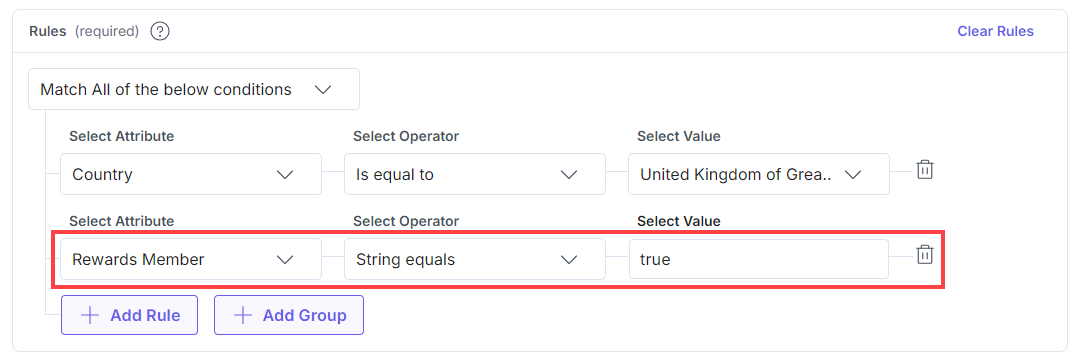
This adds the new custom attribute to your audience.
Related Resources
More articles in "Working with Attributes"
